Apple Wallet loyalty cards: how they work for UK businesses
How wallet loyalty cards work on iPhone and Android, what customers see, how updates and lock-screen notifications behave, and what to check before choosing a provider.
Key takeaways
- A wallet card is a digital pass stored in the phone’s wallet; no app download is needed.
- Balances and tier colours can update automatically after each purchase.
- Location messages are shown at the phone’s discretion, so don’t rely on them as alerts.
- Test the joining flow on both iPhone and Android before launch.
What a wallet loyalty card is
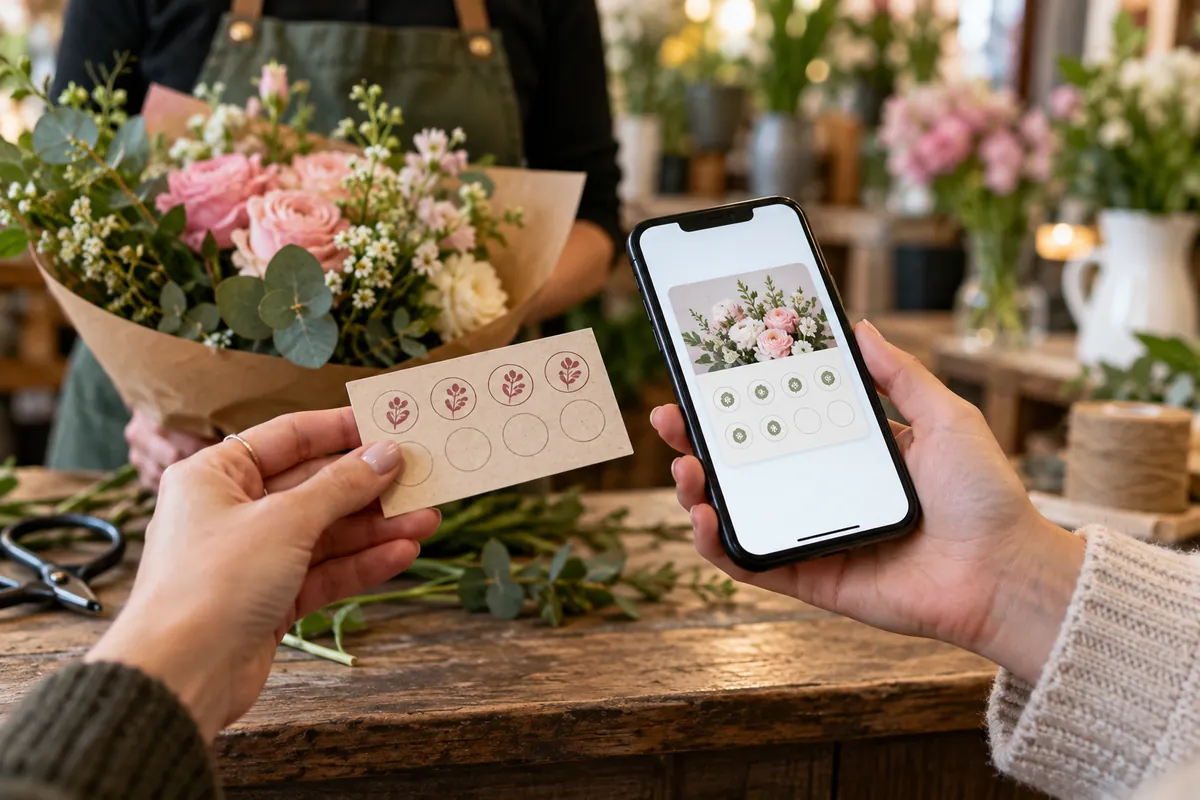
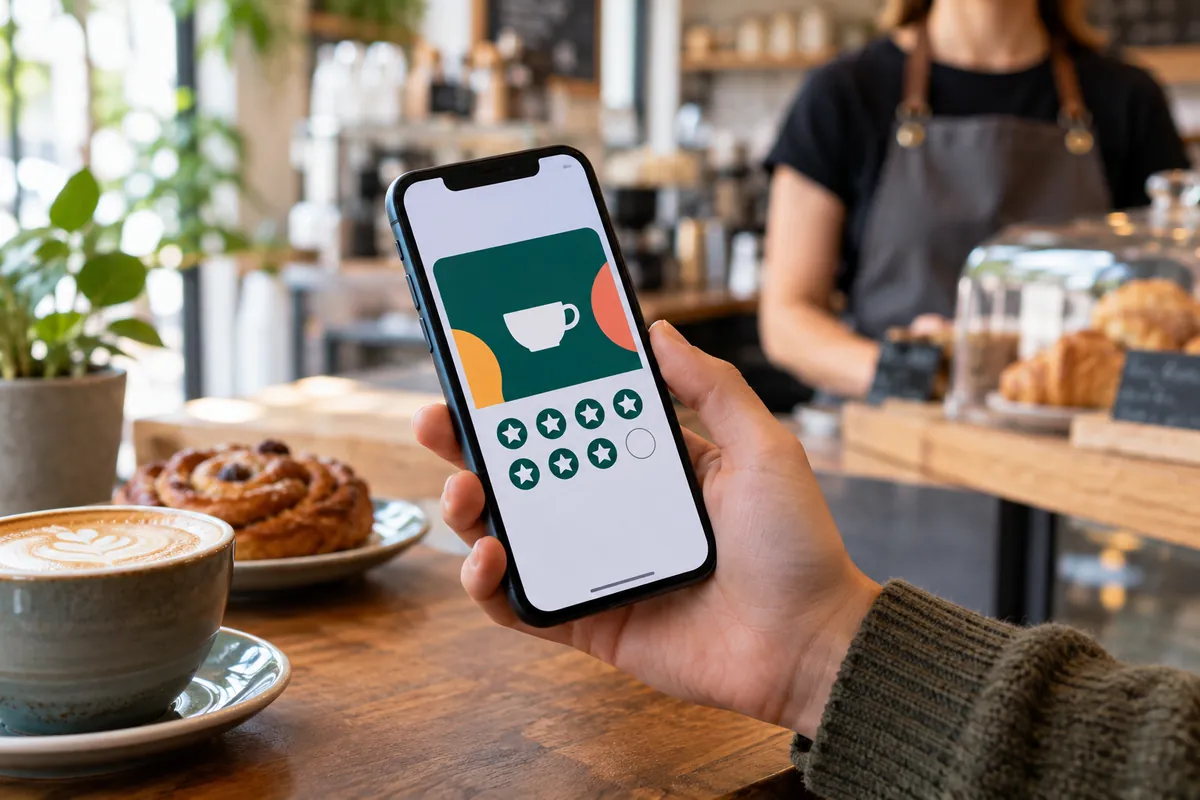
A wallet loyalty card is a digital pass that customers save to Apple Wallet on iPhone, or to a compatible wallet app on Android. It looks like a small branded card and typically shows the customer’s name, points balance, tier and a QR code that staff scan at the till.
Unlike a loyalty app, there is nothing to download from an app store. That matters for small businesses: asking customers to install your app is a big request, while saving a card takes a few seconds.
How customers get the card
The usual flow is: the customer scans a QR code at the counter or on a table, completes a short registration form, confirms their phone number and taps to add the card to their wallet. In Unity, staff can also sign customers up using their personal QR code, so you can see which team member brought each member in.
Keep the form short. Every extra field loses some people. Ask for what you need to run the programme and keep marketing preferences as a separate, clear choice.
What updates automatically
Because the pass is linked to your loyalty system, it can change after it has been saved. When a customer earns or redeems points, the balance on the card updates. In Unity, the card colour can also change to match the customer’s tier, so moving up a level is visible every time they open their wallet.
The pass can also notify the customer about a change, for example that points have been added or that their cashback rate has gone up. These notifications appear on the lock screen like other alerts. Use them for genuinely useful information rather than constant promotion.
Location-based messages (geo push)
Wallet passes can include locations. When the customer is near one of them, the phone may show a short message from the pass on the lock screen, such as “You’re near our Shoreditch café, show your card for double points today”. Apple limits how many locations a pass can carry and decides itself when to display them.
Treat geo push as a helpful nudge, not a guaranteed alert. Write one short, useful message per location and keep it current. Read more in geo push notifications explained.
What to check before choosing a provider
Wallet support varies between providers, so check it in a demo rather than on a features page.
- Join from a QR code on an iPhone and an Android phone you actually use.
- Earn points and watch the balance update on the saved card.
- Redeem points and check the new balance.
- Ask how push notifications to the card are sent and whether your plan limits them.
- Ask what happens if a customer changes phone.
- Check the card design: logo, colours and the contact details shown on it.
iPhone and Android: what to expect
On iPhone, Apple Wallet is built in, so saving a loyalty card is a single tap once the customer has registered. On Android, wallet support depends on the apps installed on the phone; customers save the card to a compatible wallet app. Before launch, try the full joining flow on at least one recent iPhone and one Android phone, ideally the kinds your customers actually carry.
Some customers will prefer not to use a wallet at all. Make sure staff can still find them by phone number or card number, so nobody is turned away at the till because their phone is in a bag.
Designing a card customers recognise
The card competes for attention with bank cards and boarding passes, so keep the design simple. Use your logo and brand colours, make sure text has enough contrast to read in sunlight, and show only what customers need: their name, balance, tier and the QR code. Add your address, phone number and website so the card doubles as a digital business card.
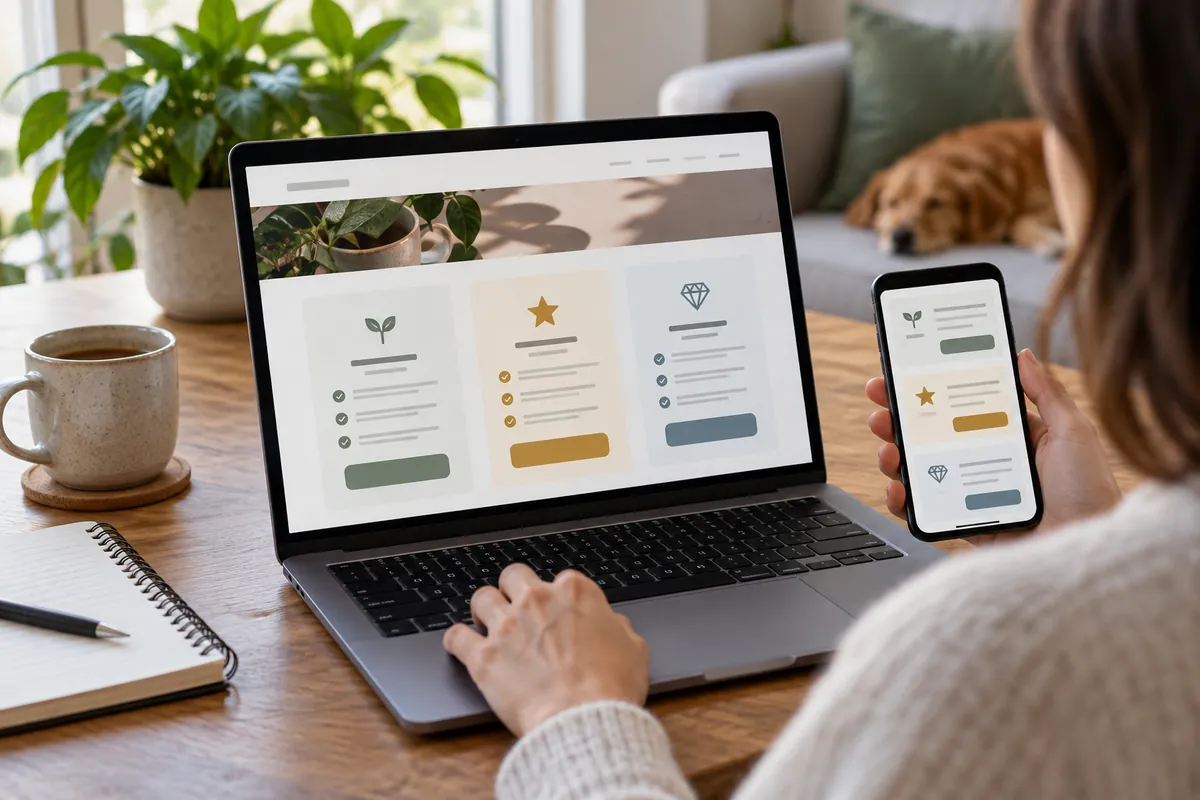
If your programme has tiers, using a different colour for each tier makes progress visible every time the customer opens their wallet. In Unity, the card colour follows the customer’s tier automatically.
Questions customers ask at the till
Prepare staff for the questions that come up in the first weeks. Short, confident answers make the programme feel trustworthy.
- “Do I need to download an app?” No, the card goes in your phone’s wallet.
- “What if I change my phone?” Your account is linked to your phone number, so we can still find you and help you add the card again.
- “Will you spam me?” Only if you choose to receive offers, and you can switch them off at any time.
- “How do I use my points?” Show your card when you pay and we’ll take them off the bill.
Making the most of the card
A wallet card also works as a digital business card: it can carry your address, phone number and website, so customers can find you without searching. Combine it with a clear reward and well-timed notifications and it becomes the cheapest marketing channel you have.
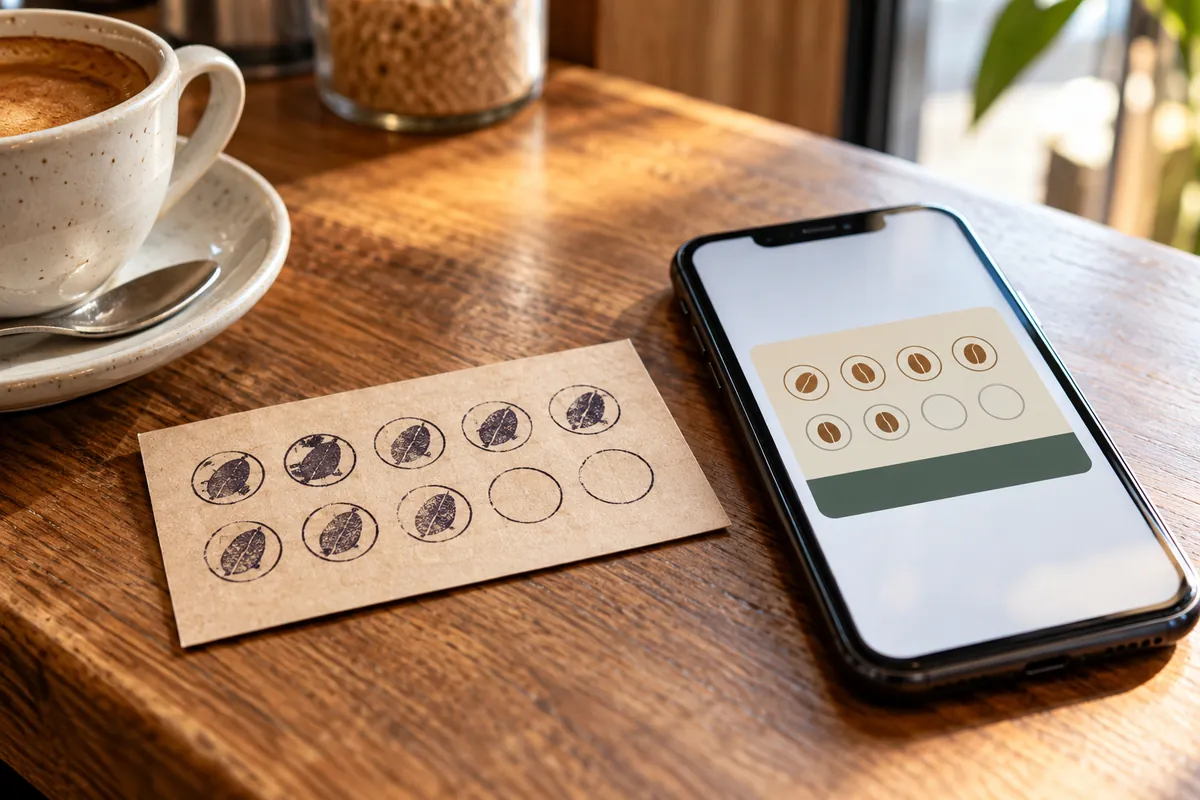
See how Unity handles wallet cards, cashback tiers and notifications on the customer notifications page, or compare digital and paper stamp cards. Our digital loyalty card software puts the card in Apple Wallet and compatible Android wallets without an app download.
For current guidance on customer information and marketing preferences, see the ICO’s direct marketing resources and our Privacy & GDPR policy.